
tech gear
Best external hard drives for family backups
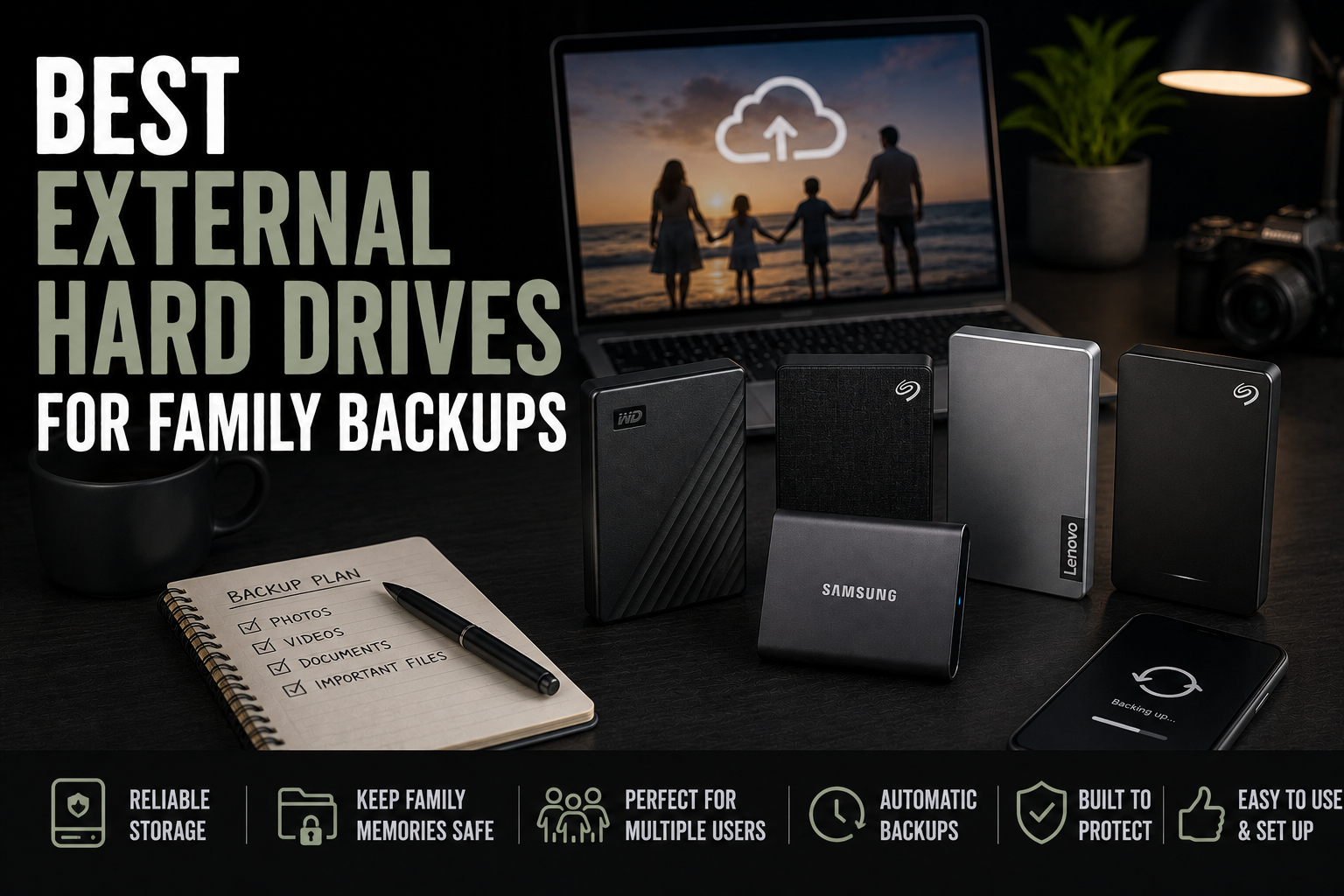
Three sensible external drives for protecting family photos, documents, and home-computer backups without turning the whole thing into an IT project.
As an Amazon Associate, we earn from qualifying purchases at no extra cost to you.
Featured Amazon Picks
Family photos have a nasty habit of living in exactly one place. So do tax documents, school projects, home videos, and the folder called “important stuff” that nobody has opened since 2021. One dead laptop or dropped phone later, the family archive becomes a very expensive lesson.
You do not need a tiny server rack in the basement to fix that. For most homes, a simple external drive plus a second copy somewhere else is enough to turn disaster into an inconvenience. These three drives cover the useful lanes: two inexpensive 2TB hard drives for routine backups and one much faster 1TB SSD for people who move files often or carry the drive around.
TL;DR picks
- Best simple family backup drive: WD 2TB Elements Portable External Hard Drive
- Best straightforward alternative: Seagate Portable 2TB External Hard Drive
- Best fast portable SSD: Samsung T7 Portable SSD 1TB
1) WD 2TB Elements Portable External Hard Drive
This is the boring recommendation, which is exactly what a backup drive should be. The WD Elements is small, USB-powered, and roomy enough for a normal family’s documents, photo library, and a healthy pile of home video. Plug it into a Windows PC, point the built-in backup software at it, and let it do its quiet little insurance-policy job.
The main advantage is value. A portable hard drive gives you more space per dollar than an SSD, and backup duty does not usually require blazing speed. If the drive mostly stays on a desk and runs scheduled backups, paying extra for an SSD is hard to justify.
Mac users may need to reformat it before using Time Machine. That takes a few minutes, but formatting erases the drive, so do it before loading anything onto it.
Pros
- Good capacity for family photos, documents, and PC backups
- USB-powered, so there is no separate power brick
- Better value per terabyte than a portable SSD
Cons
- Slower than the Samsung T7
- A spinning hard drive does not love drops or rough travel
- May need reformatting for Mac backup use
2) Seagate Portable 2TB External Hard Drive
The Seagate fills almost the same role as the WD: inexpensive, compact storage for backups that happen at a desk instead of in an airport lounge. It works well as a second household drive, a separate copy for the family photo archive, or the drive you hand to a relative after finally organizing twenty years of pictures.
There is no magic reason every home should choose Seagate over WD or vice versa. For ordinary backup duty, capacity, current price, and your comfort with the brand matter more than tiny spec-sheet differences. If this one is meaningfully cheaper when you buy, it is the sensible pick.
It is also USB-powered and easy to store, but the same hard-drive rules apply: do not toss it loose into a backpack, and do not treat one drive as the only copy of anything irreplaceable.
Pros
- Straightforward 2TB capacity for routine computer backups
- Compact and powered through the USB cable
- Good candidate for a second, separate backup copy
Cons
- File transfers are much slower than on an SSD
- Moving parts make it a poor choice for careless travel
- Another close substitute may be the better buy if pricing changes
3) Samsung T7 Portable SSD 1TB
- Amazon: Samsung T7 Portable SSD 1TB
The Samsung T7 is the pick for people who will actually move the drive around or regularly copy large photo and video folders. It is dramatically faster than a portable hard drive, takes up almost no room, and has no spinning disk inside. Backups finish sooner, restoring files is less painful, and tossing it into a laptop bag feels less reckless.
The tradeoff is capacity per dollar. This model gives you 1TB instead of the 2TB offered by the two hard drives above. That is plenty for documents and a moderate photo library, but it can disappear quickly if several phones are dumping years of 4K video into the same archive.
Buy the T7 because speed and portability matter, not because an SSD makes a backup invincible. It can still be lost, damaged, or corrupted. Fast storage is useful; a second copy is what makes it a backup plan.
Pros
- Much faster transfers than a portable hard drive
- Tiny, quiet, and better suited to travel
- Great for large photo and video folders that change often
Cons
- Less capacity than the 2TB hard drives in this guide
- Costs more per terabyte
- Easy to misplace because it is so small
What I would actually buy
For the backup drive that stays connected to the family computer, I would buy whichever 2TB hard drive is the better deal that day. Start with the WD Elements if the prices are close; buy the Seagate without guilt if it is cheaper.
I would choose the Samsung T7 for a laptop, frequent travel, or photo and video work where waiting on a slow drive gets old fast. It is the nicest drive here to use, but speed is not the main requirement for a set-it-and-forget-it home backup.
The smarter upgrade is not buying a fancier single drive. It is buying a second copy. Keep one backup at home and another off-site or in a reputable cloud service. A drive sitting next to the computer does not protect you from theft, fire, or the same spilled drink taking out both devices in one heroic splash.
A backup setup normal people can maintain
- Keep the working files on the computer.
- Run an automatic backup to one external drive.
- Keep another copy in cloud storage or on a second drive stored somewhere else.
- Check every month or two that recent files are actually present and can be opened.
That is the useful version of the 3-2-1 backup rule: three copies, on at least two kinds of storage, with one copy somewhere else. The best backup drive is not the one with the fanciest benchmark. It is the one you connect, automate, and occasionally verify before the family laptop decides to become a brick.